最近在迁移项目到 .net6,发现项目中用的 PDF 库不支持 .net6,于是想着换一个库。结果找了一大圈,发现不是版本不支持,就是收费。
嗐!还能咋办,只能自己搞一个 PDF 生成控件咯。
// BuyBookView.xaml<DataGrid Grid.Row="1" Margin="24,0" AutoGenerateColumns="False" FontSize="16" IsReadOnly="True" ItemsSource="{Binding Books}" TextBlock.TextAlignment="Center"> <DataGrid.Columns> <DataGridTextColumn Width="*" Binding="{Binding Title}" Header="书名" Header /> <DataGridTextColumn Width="100" Binding="{Binding Author}" Header="作者" Header /> <DataGridTextColumn Width="100" Binding="{Binding Price}" Header="价格" Header /> </DataGrid.Columns></DataGrid>// BuyBookViewModelpublic BuyBookViewModel(IDialogService dialogService){ Title = "鸭霸的购书目录"; Books = new List<Book> { new() { Title = "JavaScript权威指南 原书第7版", Author = "巨佬1", Price = 90.3 }, new() { Title = "深入浅出node.js", Author = "巨佬2", Price = 57.8 }, new() { Title = "编码:隐匿在计算机软硬件背后的语言", Author = "巨佬3", Price = 89.00 } };}// PrintPdfView.xml...xmlns:wpf="clr-namespace:Microsoft.Web.WebView2.Wpf;assembly=Microsoft.Web.WebView2.Wpf"...<Grid Margin="24"> <Grid.RowDefinitions> <RowDefinition /> <RowDefinition Height="Auto" /> </Grid.RowDefinitions> <Grid> <wpf:WebView2 x:Name="webView2" /> </Grid> <Grid Grid.Row="1"> <Button x:Name="save" HorizontalAlignment="Right" Content="保存" /> </Grid></Grid>// PrintPdfViewModel.cspublic class PrintPdfViewModel : BindableBase, IDialogAware{ private string _template; /// <summary> /// PDF 的 html 模板 /// </summary> public string Template { get => _template; set => SetProperty(ref _template, value); } private ExpandoObject _data; /// <summary> /// 传递给 pdf 的数据 /// </summary> public ExpandoObject Data { get => _data; set => SetProperty(ref _data, value); } public void OnDialogOpened(IDialogParameters parameters) { // 弹窗接收 template 和 data 两个参数 parameters.TryGetValue("template", out _template); parameters.TryGetValue("data", out _data); } public string Title => "预览 PDF";}// PrintPdfViewModel.xaml.cs/// <summary>/// 配置 WebView2,加载 vuejs,加载 pdf 模板,传递数据到 html 中/// </summary>/// <returns></returns>private async Task Load(){ await webView2.EnsureCoreWebView2Async(); webView2.CoreWebView2.Settings.AreDefaultContextMenusEnabled = false; // 禁止右键菜单 var assembly = Assembly.GetExecutingAssembly(); var resourceName = "PrintPdf.Views.vue.global.js"; using var stream = assembly.GetManifestResourceStream(resourceName); if (stream != null) { using var reader = new StreamReader(stream); var vue = await reader.ReadToEndAsync(); await webView2.CoreWebView2.AddScriptToExecuteOnDocumentCreatedAsync(vue); // 加载 vuejs } var vm = (PrintPdfViewModel)DataContext; webView2.CoreWebView2.NavigateToString(vm.Template); // 加载 pdf 模板 webView2.CoreWebView2.NavigationCompleted += (sender, args) => { var json = JsonSerializer.Serialize(vm.Data); webView2.CoreWebView2.PostWebMessageAsJson(json); // 将数据传递到 html 中 };}// PrintPdfViewModel.xaml.cssave.Click += async (sender, args) =>{ var saveFileDialog = new SaveFileDialog { Filter = "txt files (*.pdf)|*.pdf", RestoreDirectory = true, InitialDirectory = Environment.GetFolderPath(Environment.SpecialFolder.MyDocuments), FileName = $"test.pdf" }; var result = saveFileDialog.ShowDialog(); if (result != true) return; var printSetting = webView2.CoreWebView2.Environment.CreatePrintSettings(); printSetting.ShouldPrintBackgrounds = true; var saveResult = await webView2.CoreWebView2.PrintToPdfAsync($"{saveFileDialog.FileName}", printSetting);};<html lang="en"><head> ...</head><body> <div id="app"> <div id="header"> <h3> {{title}} </h3> </div> <div id="content"> <table> <thead> <tr> <th>序号</th> <th>书名</th> <th>作者</th> <th>价格</th> </tr> </thead> <tbody> <tr v-for="(item, i) in books"> <th>{{i+1}}</th> <td>{{item.Title}}</td> <td>{{item.Author}}</td> <td>{{item.Price}}</td> </tr> </tbody> </table> </div> </div></body><script> // 调用 webview.addEventListener 来监听 WPF 传递给 WebView2 的数据。 window.chrome.webview.addEventListener('message', event => generate(event.data)); // 完成数据绑定 function generate(data) { const app = Vue.createApp({ data() { return {title, books} = data; }, }); app.mount('#app'); }</script></html>// BuyBookView.xaml<Button Command="{Binding ShowPrintViewCommand}" Content="预览 PDF1 " /> // BuyBookViewModelShowPrintViewCommand = new DelegateCommand(() =>{ var assembly = Assembly.GetExecutingAssembly(); var resourceName = $"PrintPdf.ViewModels.test_print.html"; using var stream = assembly.GetManifestResourceStream(resourceName); // 加载模板 if (stream == null) return; using var reader = new StreamReader(stream); var t = reader.ReadToEnd(); dynamic d = new ExpandoObject(); // 转换数据 d.title = Title; d.books = Books; var p = new DialogParameters { {"template", t}, {"data", d} }; dialogService.ShowDialog(nameof(PrintPdfView), p, null);});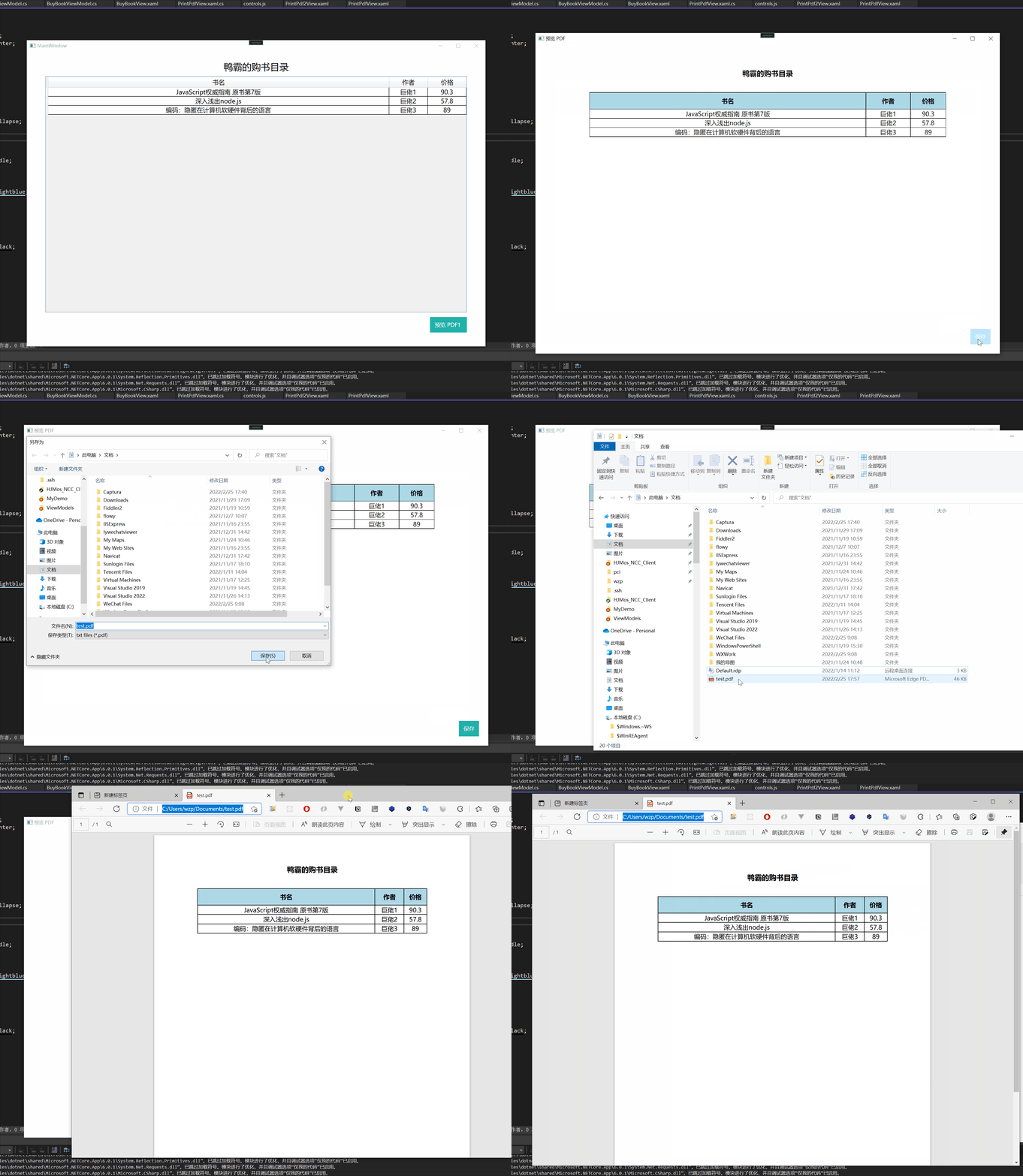
现在功能已经差不多了,但是 html 模板需要写的 js 太多,而且这是一个 WPF 控件,所以应该封装一下,最好用起来跟 wpf 一样才更好。
既然都用 vue 了,那就用 vue 封装一下组件。
// controls.jsconst DataGrid = { props: ["itemsSource", "columns"], template: ` <table > <thead> <tr> <th v-for="column in columns" > {{column.Header}} </th> </tr> </thead> <tbody> <tr v-for="item in itemsSource"> <td v-for="column in columns" > {{item[column.Binding]}} </td> </tr> </tbody> </table> `}const DocumentHeader = { props: ["title"], template: ` <div > <h2>{{title}}</h2> </div> `};var assembly = Assembly.GetExecutingAssembly();var controlsFile = "PrintPdf.Views.controls.js";using var controlsStream = assembly.GetManifestResourceStream(controlsFile);using var controlsReader = new StreamReader(controlsStream);var controls = await controlsReader.ReadToEndAsync();await webView2.CoreWebView2.AddScriptToExecuteOnDocumentCreatedAsync(controls);<html lang="en"><head> ...</head><body> <div id="app"> <document-header :title="title"></document-header> <data-grid :items-source="books" :columns="columns"></data-grid> </div></body><script> window.chrome.webview.addEventListener('message', event => generate(event.data)); function generate(data) { Vue.createApp({ data() { return { title,columns,books } = data; }, components: { DataGrid, DocumentHeader } }).mount('#app'); }</script></html>