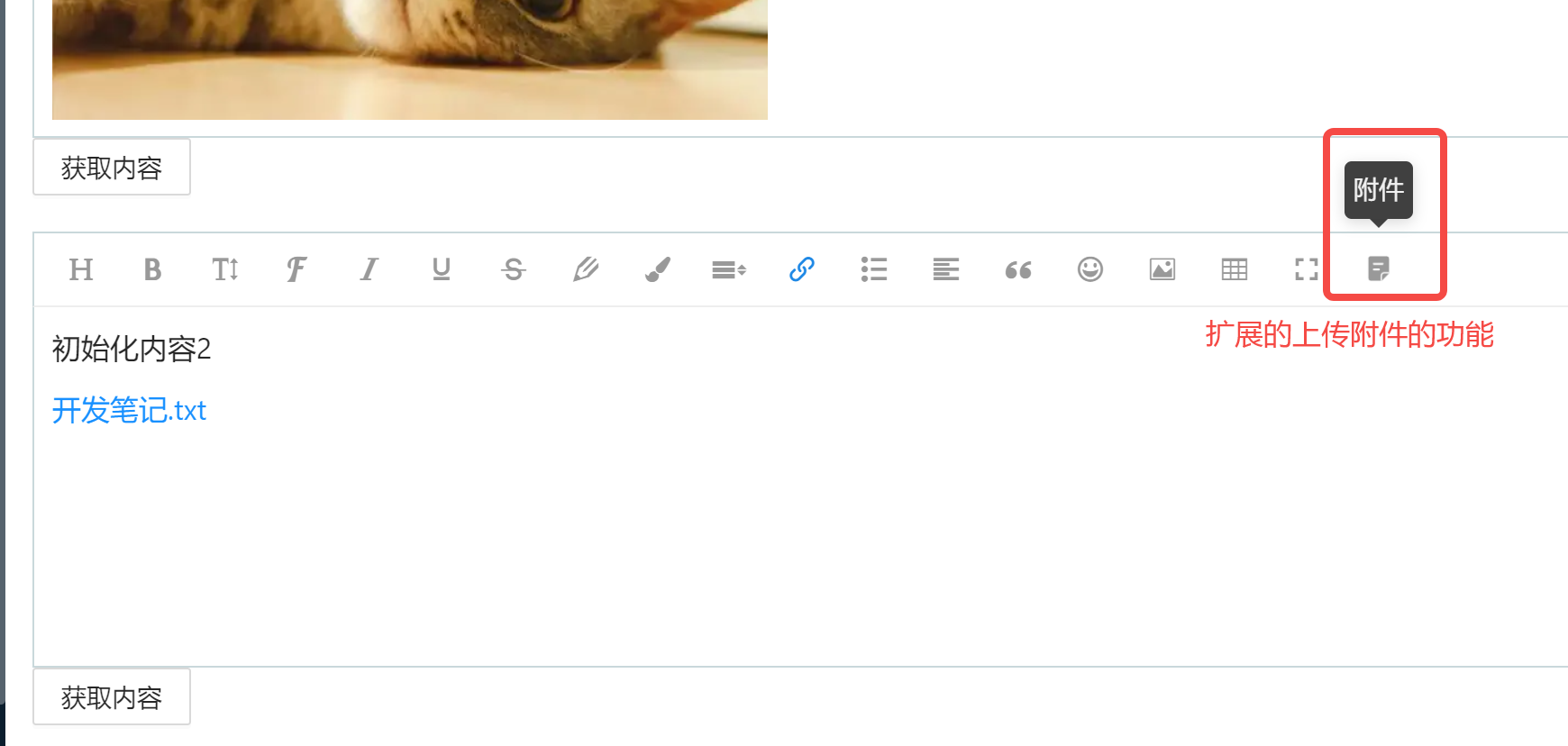
在最近的工作中需要用到富文本编辑器,结合项目的UI样式以及业务需求,选择了wangEditor。另外在使用的过程中发现wangEditor只有上传图片和视频的功能,没有上传文本附件的功能,所以需要对其扩展一个上传附件的功能。
我们的项目前端是用的react框架,在这里就记录一下我在项目中对wangEditor的简单封装使用以及扩展上传附件菜单。
需要购买阿里云产品和服务的,点击此链接领取优惠券红包,优惠购买哦,领取后一个月内有效: https://promotion.aliyun.com/ntms/yunparter/invite.html?userCode=fp9ccf07
yarn add wangeditor -S

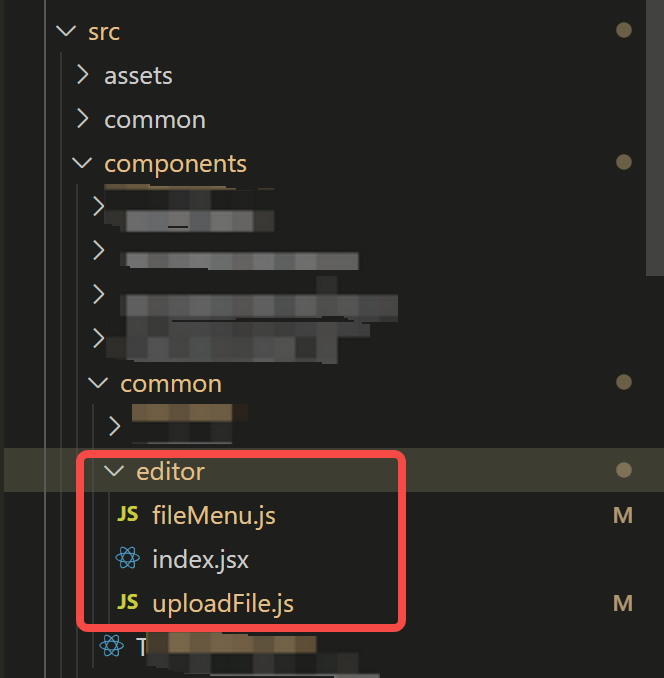
在components/common目录下新建一个editor文件夹,该文件夹下是封装的组件,
目录结构如下:
下面直接贴代码
import React, { Component } from 'react';import { message, Spin } from 'antd';import Wangeditor from 'wangeditor';import fileMenu from './fileMenu';import $axios from '@/request';/** * 对wangEditor进行封装后的富文本编辑器组件,引用该组件时可传入一下参数 * isUploadFile: 是否可上传附件(自定义扩展菜单) * defaultHtml: 默认初始化内容 * height: 设置编辑器高度 * uploadFileServer:附件上传接口地址 * maxFileSize:上传附件大小最大限制(单位:M) * uploadImgServer:图片上传接口地址 * maxImgSize:上传图片大小最大限制(单位:M) * menus: 可显示的菜单项 */export default class Editor extends Component { constructor(props) { super(props) this.containerRef = React.createRef(); this.state = { isUploading: false, //是否正在上传附件或图片 } } componentDidMount = () => { const div = this.containerRef.current; const editor = new Wangeditor(div); editor.config.height = this.props?.height || 200; editor.config.menus = this.props?.menus || [ 'head', // 标题 'bold', // 粗体 'fontSize', // 字号 'fontName', // 字体 'italic', // 斜体 'underline', // 下划线 'strikeThrough', // 删除线 'foreColor', // 文字颜色 'backColor', // 背景颜色 'lineHeight', // 行高 'link', // 插入链接 'list', // 列表 'justify', // 对齐方式 'quote', // 引用 'emoticon', // 表情 'image', // 插入图片 'table', // 表格 // 'video', // 插入视频 // 'code', // 插入代码 // 'undo', // 撤销 // 'redo' // 重复 ]; this.editor = editor; this.setCustomConfig(); editor.create(); editor.txt.html(this?.props?.defaultHtml) // 要放在editor实例化之后创建上传菜单 this?.props?.isUploadFile && fileMenu( editor, this.containerRef.current, { uploadFileServer: this.props?.uploadFileServer, // 附件上传接口地址 maxFileSize: this.props?.maxFileSize || 10, // 限制附件最大尺寸(单位:M) }, this.changeUploading ); }; changeUploading = (flag) => { this.setState({ isUploading: flag }); } onChange = html => { this?.props?.onChange(html); }; // 上传图片 setCustomConfig = () => { const _this = this; const { customConfig } = this.props this.editor.customConfig = { // 关闭粘贴内容中的样式 pasteFilterStyle: false, // 忽略粘贴内容中的图片 pasteIgnoreImg: true, ...customConfig, } const uploadImgServer = this.props?.uploadImgServer; // 上传图片的地址 const maxLength = 1; // 限制每次最多上传图片的个数 const maxImgSize = 2; // 上传图片的最大大小(单位:M) const timeout = 1 * 60 * 1000 // 超时 1min let resultFiles = []; // this.editor.config.uploadImgMaxSize = maxImgSize * 1024 * 1024; // 上传图片大小2M this.editor.config.uploadImgMaxLength = maxLength; // 限制一次最多上传 1 张图片 this.editor.config.customUploadImg = function (files, insert) { //上传图片demo _this.changeUploading(true); for (let file of files) { const name = file.name const size = file.size // chrome 低版本 name === undefined if (!name || !size) { _this.changeUploading(false); return; } if (maxImgSize * 1024 * 1024 < size) { // 上传附件过大 message.warning('上传附件不可超过' + maxImgSize + 'M'); _this.changeUploading(false); return; } // 验证通过的加入结果列表 resultFiles.push(file); } console.log(resultFiles) if (resultFiles.length > maxLength) { message.warning('一次最多上传' + maxLength + '个文件'); _this.changeUploading(false); return; } // files 是 input 中选中的文件列表 const formData = new window.FormData(); formData.append('file', files[0]); if (uploadImgServer && typeof uploadImgServer === 'string') { // 定义 xhr const xhr = new XMLHttpRequest() xhr.open('POST', uploadImgServer) // 设置超时 xhr.timeout = timeout xhr.ontimeout = function () { message.error('上传图片超时') } // 监控 progress if (xhr.upload) { xhr.upload.onprogress = function (e) { let percent = void 0 // 进度条 if (e.lengthComputable) { percent = e.loaded / e.total console.log('上传进度:', percent); } } } // 返回数据 xhr.onreadystatechange = function () { let result = void 0 if (xhr.readyState === 4) { if (xhr.status < 200 || xhr.status >= 300) { message.error('上传失败'); _this.changeUploading(false); resultFiles = []; return; } result = xhr.responseText if ((typeof result === 'undefined' ? 'undefined' : typeof result) !== 'object') { try { result = JSON.parse(result) } catch (ex) { message.error('上传失败'); _this.changeUploading(false); resultFiles = []; return; } } const res = result || [] if (res?.code == 200) { // 上传代码返回结果之后,将图片插入到编辑器中 insert(res?.data?.url || ''); _this.changeUploading(false); resultFiles = []; } } } // 自定义 headers xhr.setRequestHeader('token', sessionStorage.getItem('token')); // 跨域传 cookie xhr.withCredentials = false // 发送请求 xhr.send(formData); } }; }; render() { return ( <Spin spinning={this.state.isUploading} tip={"上传中……"}> <div ref={this.containerRef} /> </Spin> ); }}
import uploadFile from './uploadFile';import fileImg from '@/assets/img/file.png';/** * 扩展 上传附件的功能 editor: wangEdit的实例 editorSelector: wangEdit挂载点的节点 options: 一些配置*/export default (editor, editorSelector, options, changeUploading) => { editor.fileMenu = { init: function (editor, editorSelector) { const div = document.createElement('div'); div.className = 'w-e-menu'; div.style.position = 'relative'; div.setAttribute('data-title', '附件'); const rdn = new Date().getTime(); div.onclick = function () { document.getElementById(`up-${rdn}`).click(); } const input = document.createElement('input'); input.style.position = 'absolute'; input.style.top = '0px'; input.style.left = '0px'; input.style.width = '40px'; input.style.height = '40px'; input.style.zIndex = 10; input.type = 'file'; input.name = 'file'; input.id = `up-${rdn}`; input.className = 'upload-file-input'; div.innerHTML = `<span ><img src=${fileImg} /></span>`; div.appendChild(input); editorSelector.getElementsByClassName('w-e-toolbar')[0].append(div); input.onchange = e => { changeUploading(true); // 使用uploadFile上传文件 uploadFile(e.target.files, { uploadFileServer: options?.uploadFileServer, // 附件上传接口地址 maxFileSize: options?.maxFileSize, //限制附件最大尺寸 onOk: data => { let aNode = '<p><a href=' + data.url + ' download=' + data.name + '>' + data.name + '</a></p>'; editor.txt.append(aNode); changeUploading(false); // editor.cmd.do(aNode, '<p>'+aNode+'</p>'); // document.insertHTML(aNode) }, onFail: err => { changeUploading(false); console.log(err); }, // 上传进度,后期可添加上传进度条 onProgress: percent => { console.log(percent); }, }); }; }, } // 创建完之后立即实例化 editor.fileMenu.init(editor, editorSelector)}
import { message } from 'antd'/** * 上传附件功能的实现 * @param {*} files * @param {*} options * @returns */function uploadFile(files, options) { if (!files || !files.length) { return } let uploadFileServer = options?.uploadFileServer; //上传地址 const maxFileSize = options?.maxFileSize || 10; const maxSize = maxFileSize * 1024 * 1024 //100M const maxLength = 1; // 目前限制单次只可上传一个附件 const timeout = 1 * 60 * 1000 // 超时 1min // ------------------------------ 验证文件信息 ------------------------------ const resultFiles = []; for (let file of files) { const name = file.name; const size = file.size; // chrome 低版本 name === undefined if (!name || !size) { options.onFail(''); return } if (maxSize < size) { // 上传附件过大 message.warning('上传附件不可超过' + maxFileSize + 'M'); options.onFail('上传附件不可超过' + maxFileSize + 'M'); return } // 验证通过的加入结果列表 resultFiles.push(file); } if (resultFiles.length > maxLength) { message.warning('一次最多上传' + maxLength + '个文件'); options.onFail('一次最多上传' + maxLength + '个文件'); return } // 添加附件数据(目前只做单文件上传) const formData = new FormData() formData.append('file', files[0]); // ------------------------------ 上传附件 ------------------------------ if (uploadFileServer && typeof uploadFileServer === 'string') { // 定义 xhr const xhr = new XMLHttpRequest(); xhr.open('POST', uploadFileServer); // 设置超时 xhr.timeout = timeout; xhr.ontimeout = function () { message.error('上传附件超时'); options.onFail('上传附件超时'); } // 监控 progress if (xhr.upload) { xhr.upload.onprogress = function (e) { let percent = void 0; // 进度条 if (e.lengthComputable) { percent = e.loaded / e.total; console.log('上传进度:', percent); if (options.onProgress && typeof options.onProgress === 'function') { options.onProgress(percent); } } } } // 返回数据 xhr.onreadystatechange = function () { let result = void 0; if (xhr.readyState === 4) { if (xhr.status < 200 || xhr.status >= 300) { // hook - error if (options.onFail && typeof options.onFail === 'function') { options.onFail(result); } message.error('上传失败'); return; } result = xhr.responseText if ((typeof result === 'undefined' ? 'undefined' : typeof result) !== 'object') { try { result = JSON.parse(result); } catch (ex) { // hook - fail if (options.onFail && typeof options.onFail === 'function') { options.onFail(result); } message.error('上传失败'); return; } } const res = result || [] if (res?.code == 200) { options.onOk && options.onOk(res.data); } } } // 自定义 headers xhr.setRequestHeader('token', sessionStorage.getItem('token')); // 跨域传 cookie xhr.withCredentials = false; // 发送请求 xhr.send(formData); }}export default uploadFile在首页Home.jsx里测试使用editor组件,在这里,演示在同一个页面使用多个editor组件,还是直接上代码:
import React, { createRef } from "react";import { connect } from 'react-redux';import { Button } from 'antd';import Editor from '@/components/common/editor';class Home extends React.Component { constructor(props) { super(props); this.editorRefSingle = createRef(); this.state = { editorList: [] } } componentDidMount() { let list = [ { id: 1, content: '<p>初始化内容1</p>' }, { id: 2, content: '<p>初始化内容2</p>' }, { id: 3, content: '<p>初始化内容3</p>' } ]; list.forEach(item => { this['editorRef' + item.id] = createRef(); }) this.setState({ editorList: list }) } // 获取内容(数组多个editor) getEditorContent = (item) => { let editorHtml = this['editorRef' + item.id].current.editor.txt.html(); console.log('从多个中获取一个:', editorHtml, item); } // 获取内容(单个editor) getEditorContentSingle = () => { let editorHtml = this.editorRefSingle.current.editor.txt.html(); console.log('获取单个:', editorHtml); } render() { return ( <div className="main-container home" style={{ margin: 0, height: '100%' }}> {/* editor的测试demo */} <div style={{paddingBottom:10}}> <h2>根据数组循环生成多个editor,ref需要动态定义</h2> { this.state.editorList.map((item) => ( <div className="mb_20" key={item.id}> <Editor ref={this['editorRef' + item.id]} isUploadFile={true} defaultHtml={item.content} uploadFileServer="http://rap2api.taobao.org/app/mock/297868/libo/test1/uploadEditorFile" maxFileSize={10} uploadImgServer="http://rap2api.taobao.org/app/mock/297868/libo/test1/uploadEditorImg" maxImgSize={2} /> <Button onClick={() => this.getEditorContent(item)}>获取内容</Button> </div> )) } <h2>单个editor</h2> <div className="mb_20"> <Editor ref={this.editorRefSingle} isUploadFile={true} defaultHtml="<p>初始化内容哈哈哈</p>" height={100} uploadFileServer="http://rap2api.taobao.org/app/mock/297868/libo/test1/uploadEditorFile" maxFileSize={5} uploadImgServer="http://rap2api.taobao.org/app/mock/297868/libo/test1/uploadEditorImg" maxImgSize={2} menus={['head', // 标题 'bold', // 粗体 'fontSize', // 字号 'fontName', // 字体 'italic', // 斜体 'underline', // 下划线 'foreColor', // 文字颜色 'backColor', // 背景颜色 'link', // 插入链接 'list', // 列表 'justify', // 对齐方式 'image', // 插入图片 'table', // 表格 ]} /> <Button onClick={this.getEditorContentSingle}>获取内容</Button> </div> </div> </div> ) }}const mapStateToProps = (state) => { return { userInfo: state.userInfo.user, menuC: state.userInfo.menuC, }}export default connect(mapStateToProps, {})(Home);
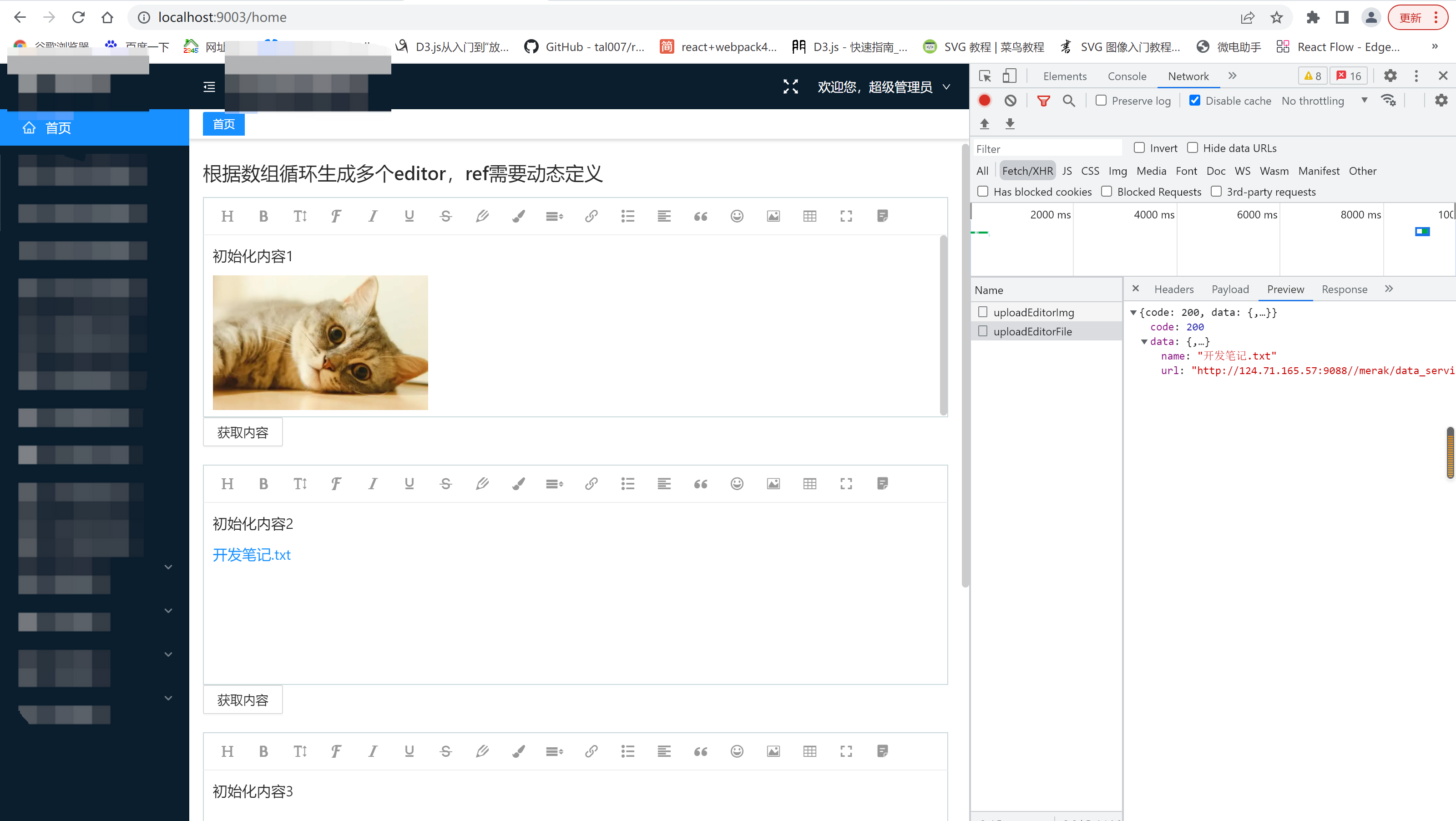

备注:代码里的上传图片和上传附件的接口地址是维护在rap2上的mock数据。根据需要改成自己的真实接口即可。