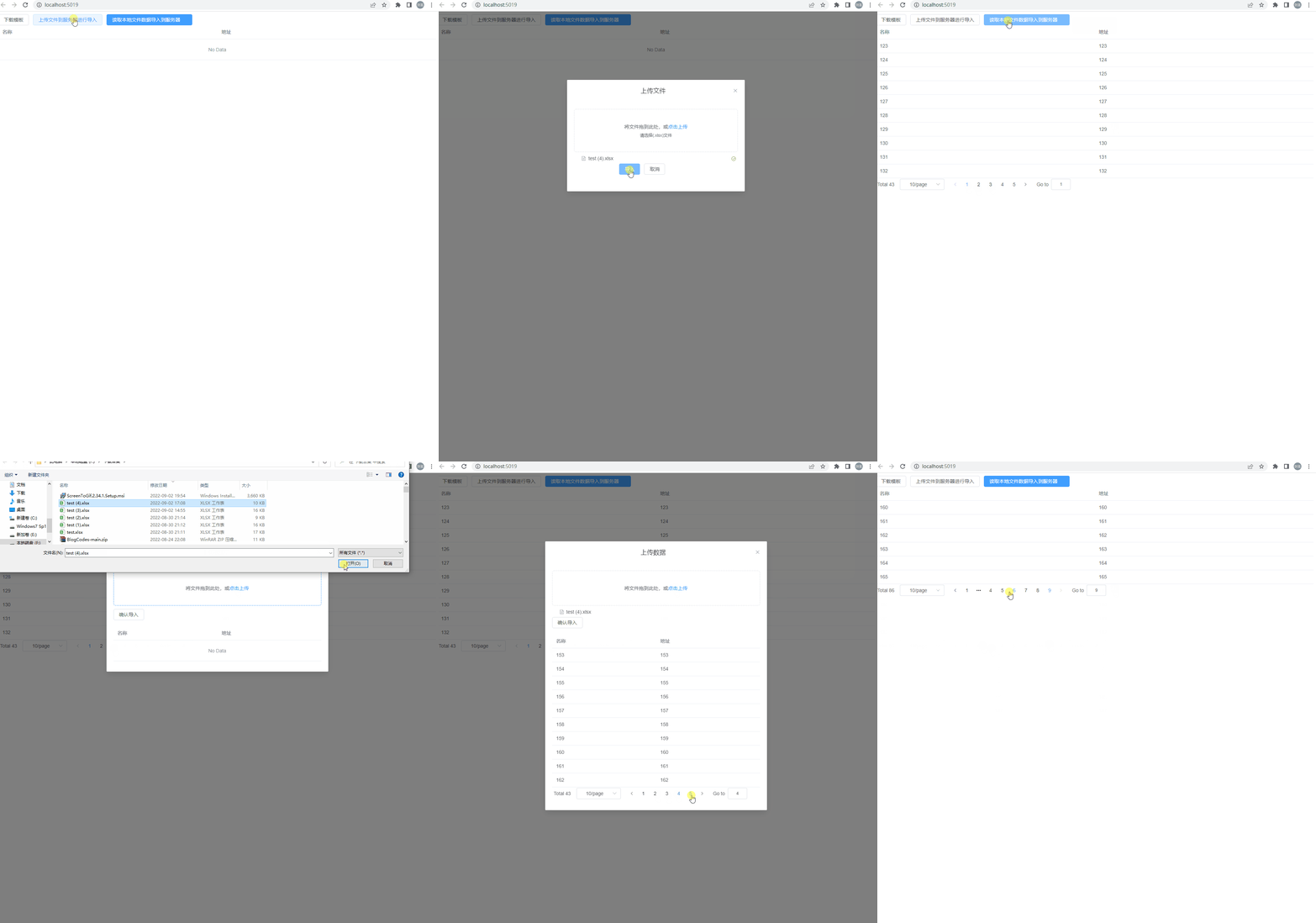
这两种方式需要根据不同的业务才进行采用
这次用.Net6.0+Vue3来实现一个数据导入的功能
接下来分别用代码来实现这两种方式
[DisableRequestSizeLimit] [HttpPost] public IActionResult Upload() { var files = Request.Form.Files; long size = files.Sum(f => f.Length); string contentRootPath = AppContext.BaseDirectory; List<string> filenames = new List<string>(); foreach (IFormFile formFile in files) { if (formFile.Length > 0) { string fileExt = Path.GetExtension(formFile.FileName); long fileSize = formFile.Length; string newFileName = System.Guid.NewGuid().ToString() + fileExt; var filePath = contentRootPath + "/fileUpload/"; if (!Directory.Exists(filePath)) { Directory.CreateDirectory(filePath); } using (var stream = new FileStream(filePath + newFileName, FileMode.Create)) { formFile.CopyTo(stream); } filenames.Add(newFileName); } } return Ok(filenames); }
这里只是上传文件分了两步走,第一步把文件上传到服务器,第二步调用接口把返回的文件路径发送给后台进行数据保存
 /// <summary>        /// 上传文件数据        /// </summary>        /// <param name="uploadStuInfoInput"></param>        /// <returns></returns>        [HttpPut]        public IActionResult Put(DataInput uploadStuInfoInput)        {            Encoding.RegisterProvider(CodePagesEncodingProvider.Instance);            var filePath = Path.Combine(AppDomain.CurrentDomain.BaseDirectory, "fileUpload", uploadStuInfoInput.filePath);            if (!System.IO.File.Exists(filePath))            {                return BadRequest("导入失败,文件不存在!");            }            var row = MiniExcelLibs.MiniExcel.Query<CompanyImportInput>(filePath).ToList();            companies.AddRange(row.Select(x => new Company { Name = x.名称, Address = x.地址 }));            return Ok("导入成功!");
     }
<el-table :data="state.tableData.data"> <el-table-column v-for="item in state.colunm" :prop="item.key" :key="item.key" :label="item.lable"> </el-table-column> </el-table> <div class='block flex justify-end' v-if='state.tableData.total > 0'> <el-pagination v-model:currentPage="state.searchInput.PageIndex" v-model:page-size="state.searchInput.PageSize" :page-sizes="[10, 50, 200, 1000]" layout="total, sizes, prev, pager, next, jumper" @size-change="getData" @current-change="getData" :total="state.tableData.total" /> </div>
const getData = () => { axios.get('/Company', { params: state.searchInput }).then(function (response) { state.tableData = response.data; }) }
[HttpGet] public dynamic Get([FromQuery] SelectInput selectInput) { return new { total = companies.Count(), data = companies.Skip((selectInput.pageIndex - 1) * selectInput.pageSize).Take(selectInput.pageSize).ToList() }; }
import FileUpload from '@/components/FileUpload.vue';
并绑定子页面回调方法fileUploadchildClick
<FileUpload ref="fileUpload" @childClick="fileUploadchildClick" accept=".xlsx" title="上传文件"></FileUpload>
<el-dialog :close-on-click-modal="false" v-model="state.dialogVisible" :title="title" width="40%"> <el-form :model='state.formData' label-width='130px' class='dialogForm'> <el-upload class='upload-demo' :limit="1" drag :accept='accept' :file-list='state.fileList' :show-file-list='true' :on-success='fileUploadEnd' :action='fileUploadUrl()'> <i class='el-icon-upload'></i> <div class='el-upload__text'>将文件拖到此处,或<em>点击上传</em></div> <div class='el-upload__tip'>请选择({{ accept }})文件</div> </el-upload> <div> <el-form-item> <el-button type='primary' @click='submit'>导入</el-button> <el-button @click='cancel'>取消</el-button> </el-form-item> </div> </el-form> </el-dialog>
选择文件成功回调方法
const fileUploadEnd = (response, file) => { state.fileresponse = file.name; state.formData.filePath = response[0]; if (state.fileList.length > 0) { state.fileList.splice(0, 1); } }
const submit = () => { if (state.formData.filePath == '') { ElMessage.error('请选择上传的文件') return; } context.emit('childClick', state.formData) }
const fileUploadchildClick = (e) => { axios.put('/Company', { filePath: e.filePath, }).then(function (response) { if (response.status == 200) { ElMessage.success(response.data); fileUpload.value.cancel(); getData(); } else { ElMessage.error(response.data) } }) }
/// <summary> /// 上传文件数据 /// </summary> /// <param name="uploadStuInfoInput"></param> /// <returns></returns> [HttpPut] public IActionResult Put(DataInput uploadStuInfoInput) { Encoding.RegisterProvider(CodePagesEncodingProvider.Instance); var filePath = Path.Combine(AppDomain.CurrentDomain.BaseDirectory, "fileUpload", uploadStuInfoInput.filePath); if (!System.IO.File.Exists(filePath)) { return BadRequest("导入失败,文件不存在!"); } var row = MiniExcelLibs.MiniExcel.Query<CompanyImportInput>(filePath).ToList(); companies.AddRange(row.Select(x => new Company { Name = x.名称, Address = x.地址 })); return Ok("导入成功!");
}
import DataUpload from '@/components/DataUpload.vue';
并绑定子页面回调方法dataUploadchildClick
<DataUpload ref="dataUpload" @childClick="dataUploadchildClick" accept=".xlsx" title="上传数据"></DataUpload>
<el-dialog :close-on-click-modal="false" v-model="state.dialogVisible" :title="title" width="50%"> <el-upload :action='accept' drag :auto-upload="false" :on-change="uploadChange" :limit="1"> <i ></i> <div >将文件拖到此处,或<em>点击上传</em></div> </el-upload> <div> <el-form-item> <el-button @click='submit'>确认导入</el-button> </el-form-item> </div> <el-table :data="state.tableData.data"> <el-table-column v-for="item in state.colunm" :prop="item.key" :key="item.key" :label="item.lable"> </el-table-column> </el-table> <div class='block flex justify-end' v-if='state.tableData.total > 0'> <el-pagination v-model:currentPage="state.searchInput.PageIndex" v-model:page-size="state.searchInput.PageSize" :page-sizes="[10, 50, 200, 1000]" layout="total, sizes, prev, pager, next, jumper" @size-change="getData" @current-change="getData" :total="state.tableData.total" /> </div> </el-dialog>
const uploadChange = async (file) => { let dataBinary = await readFile(file.raw) let workBook = XLSX.read(dataBinary, { type: 'binary', cellDates: true }) let workSheet = workBook.Sheets[workBook.SheetNames[0]] let data: any = XLSX.utils.sheet_to_json(workSheet) let tHeader = state.colunm.map(obj => obj.lable) let filterVal = state.colunm.map(obj => obj.key) tHeader.map(val => filterVal.map(obj => val[obj])) const tempData: any = []; data.forEach((value) => { const ob = {}; tHeader.forEach((item, index) => { ob[filterVal[index]] = value[item].toString(); }) tempData.push(ob); }) state.tempTableData = tempData; getData(); }
const getData = () => { const tempData: any = []; state.tempTableData.forEach((value, index) => { if (index >= ((state.searchInput.PageIndex - 1) * state.searchInput.PageSize) && index < ((state.searchInput.PageIndex) * state.searchInput.PageSize)) { tempData.push(value); } }); state.tableData.data = tempData; state.tableData.total = state.tempTableData.length; }
const submit = () => { context.emit('childClick', state.tempTableData) }
const dataUploadchildClick = (data) => { axios.post('/Company', data) .then(function (response) { if (response.status == 200) { ElMessage.success(response.data); dataUpload.value.cancel(); getData(); } else { ElMessage.error(response.data) } }) }
/// 上传数据 /// </summary> /// <param name="uploadStuInfoInput"></param> /// <returns></returns> [HttpPost] public IActionResult Post(List<Company> companiesInput) { companies.AddRange(companiesInput); return Ok("保存成功!"); }
最后关于这个数据导入的功能就完成了,代码中有很多得伪代码,而且很多功能还待完善,后续再进行补充
附上git地址:https://gitee.com/wyf854861085/file-upload.git
Git演示图: