Popup表示具有内容的弹出窗口,其主要属性为:
Popup主要事件为:
Opened:当IsOpen 属性更改为 true 时发生。
private void PopupOpening(object sender, EventArgs e){ //Code to execute when Popup opens}Closed:当IsOpen 属性更改为 false 时发生。
private void PopupClosing(object sender, EventArgs e){ //Code to execute when Popup closes}我们使用Popup实现一个功能:当文本框获取到焦点时,弹出下拉框,里面选择水果种类,具体效果如下图所示:
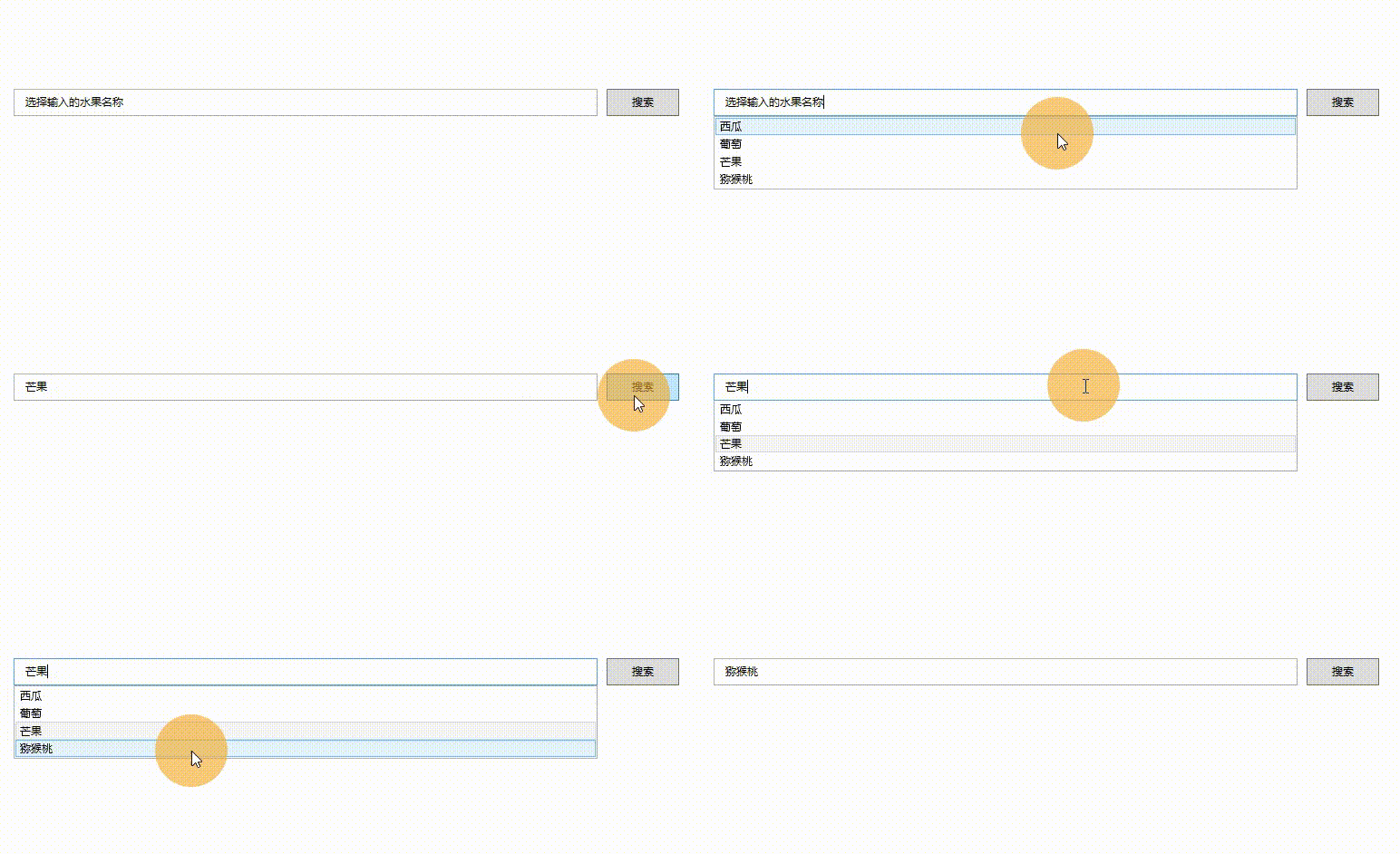
相关的界面代码为:
<Window.Resources> <x:Array x:Key="MyArray" Type="system1:String"> <system1:String>西瓜</system1:String> <system1:String>葡萄</system1:String> <system1:String>芒果</system1:String> <system1:String>猕猴桃</system1:String> </x:Array> </Window.Resources> <Grid Margin="20"> <Grid.ColumnDefinitions> <ColumnDefinition Width="*"></ColumnDefinition> <ColumnDefinition Width="100"></ColumnDefinition> </Grid.ColumnDefinitions> <TextBox Grid.Column="0" Height="30" BorderThickness="1" VerticalContentAlignment="Center" Padding="10,0" x:Name="TestTextBox" ToolTip="{StaticResource MyArray}"> </TextBox> <Button Grid.Column="1" Content="搜索" Margin="10,0" Height="30" Click="ButtonBase_OnClick"></Button> <Popup Grid.Column="0" AllowsTransparency="True" PopupAnimation="Slide" PlacementTarget="{Binding ElementName=TestTextBox}" Placement="Bottom" Width="{Binding ElementName=TestTextBox, Path=ActualWidth}" IsOpen="{Binding ElementName=TestTextBox, Path=IsKeyboardFocused, Mode=OneWay}"> <ListBox ItemsSource="{Binding ElementName=TestTextBox, Path=ToolTip}" SelectedItem="{Binding ElementName=TestTextBox, Path=Text, Mode=OneWayToSource}"></ListBox> </Popup> </Grid>为了,让Popup控件能够跟随目标控件移动,需要增加一个工具类,具体如下所示:
public class PopupHelper { /// <summary> /// 附加属性:跟随放置控件而移动 /// </summary> public static readonly DependencyProperty PopupPlacementTargetProperty = DependencyProperty.RegisterAttached("PopupPlacementTarget", typeof(DependencyObject), typeof(PopupHelper), new PropertyMetadata(null, OnPopupPlacementTargetChanged)); public static DependencyObject GetPopupPlacementTarget(DependencyObject obj) { return (DependencyObject)obj.GetValue(PopupPlacementTargetProperty); } public static void SetPopupPlacementTarget(DependencyObject obj, DependencyObject value) { obj.SetValue(PopupPlacementTargetProperty, value); } private static void OnPopupPlacementTargetChanged(DependencyObject d, DependencyPropertyChangedEventArgs e) { if (d is System.Windows.Controls.Primitives.Popup pop && e.NewValue is DependencyObject placementTarget) { var window = Window.GetWindow(placementTarget); if (window != null) { window.LocationChanged += delegate { var mi = typeof(System.Windows.Controls.Primitives.Popup).GetMethod("UpdatePosition", System.Reflection.BindingFlags.NonPublic | System.Reflection.BindingFlags.Instance); mi?.Invoke(pop, null); }; } } } }该附加属性的使用如下所示:
<Popup local:PopupHelper.PopupPlacementTarget="{Binding ElementName=TestTextBox}"></Popup>